How to make a scroll-driven video animation with FFMPEG, WebP frames, and canvas
How I turned a short video into a scroll-controlled WebP frame animation using FFMPEG, canvas, and vanilla JavaScript.

What you’ll learn
- How to turn a short video into a WebP frame sequence.
- How to draw frames to a canvas based on scroll progress.
- How to balance file size, frame rate, and perceived smoothness.
- Update: How to drive a scroll hint and ambient background from the same
progressusing CSS variables on the hero (see the April 27, 2026 section near the end).
This is a particular kind of web animation to give your website a bit of life.
You scroll, and instead of a normal video playing, the image responds exactly to your scroll position. Product pages use it to rotate phones, open laptops, reveal shoes, move headphones through space. Apple has made this style feel almost like a category of its own.
The trick is quite simple:
Video -> FFMPEG -> WebP image sequence -> canvas -> scroll progress
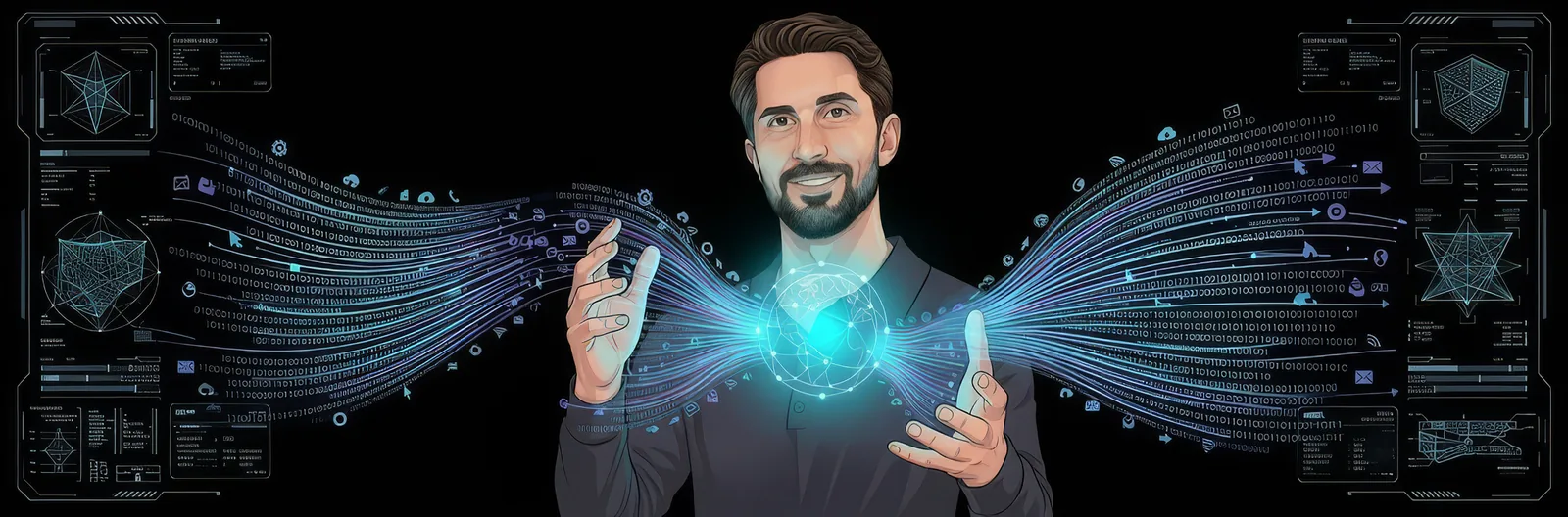
I currently use this on the landing page of this blog. The old static profile image was replaced with a short animation exported from an mp4. As you scroll, the profile changes frame by frame. The hero stays pinned until the animation is done, then the rest of the blog appears.
I have used the same technique on other sites too, for example as a little “thank you” moment after an RSVP, where the guest completes a form and gets a scroll-controlled celebration instead of a static confirmation screen. It is a nice pattern, turning a boring transition into something memorable without needing a heavy animation framework.
This post walks through how to build it with the same kind of stack I use here: Jekyll, static files, plain CSS, vanilla JavaScript, FFMPEG, and WebP frames. The Jekyll part can be replaced by any front-end framework. On the RSVP page mentioned, I used Vue, for example.
1. Start With A Short Video
The source should be short. Think 3 to 6 seconds. I created mine using:
- Two images (start and end frame) generated in Nano Banana (use any image generator or even actual images, doesn’t have to be AI-generated).
- Kling AI to turn those two frames into a short video. I used Kling inside Higgsfield.ai, but the same idea should work directly in the Kling web UI too.
For scroll-driven animation, every exported frame becomes a file the browser needs to load. A 4-second video at 24 fps becomes about 96 frames. That is smooth, but it can get heavy quickly if you also keep the original video dimensions.
Every exported frame becomes a file the browser needs to load.
Good source video rules:
- Keep it short.
- Keep the subject centered.
- Use a consistent aspect ratio.
- Avoid tiny text in the video.
- Export at the size you actually need on the site.
My source video is about 4 seconds at 24 fps, which gives 97 frames before optimization.
2. Inspect The Video
Before generating frames, inspect the video so your JavaScript constants match reality.
ffprobe -v error \
  -select_streams v:0 \
  -show_entries stream=width,height,r_frame_rate,duration,nb_frames \
  -of json \
  assets/images/profile_vid.mp4
You want to know:
- Width
- Height
- Frame rate
- Duration
- Number of frames
For example:
{
  "width": 1372,
  "height": 1508,
  "r_frame_rate": "24/1",
  "duration": "4.041667",
  "nb_frames": "97"
}
Those values tell you what you are starting from. If you export at the original size and frame rate, they also become your canvas size and frame count. If you scale or lower the FPS during export, use the exported frame dimensions and exported frame count instead.
3. Export WebP Frames With FFMPEG
Create a folder for the frames:
mkdir -p assets/images/profile-frames
Then export the video. This is the balanced command I ended up using for my blog:
ffmpeg -y \
  -i assets/images/profile_vid.mp4 \
  -vf "fps=22,scale=850:-1" \
  -q:v 70 \
  -c:v libwebp \
  assets/images/profile-frames/frame-%04d.webp
This creates files like:
frame-0001.webp
frame-0002.webp
frame-0003.webp
...
frame-0089.webp
I like WebP for this because the files are smaller than JPEG at similar visual quality, and browser support is good enough for modern sites.
My first export used the full source size (1372×1508) at 24fps and quality 75. It looked good, but the frame sequence was around 7.2 MB. Then I tried a more aggressive version at 18fps, 850px wide, and quality 70. That brought the sequence down to about 3.15 MB, but the animation felt too janky when scrubbing.
The final balance I chose is:
22fps850×934- WebP quality around
70 89frames- about
3.84 MBfor the sequence - a separate optimized placeholder WebP of about
25 KB
That keeps the animation much lighter than the original, while avoiding the choppiness I noticed at 18fps.
If that sounds too heavy, reduce one of these:
- Frame rate: try
fps=18orfps=15, but test the feel. - Video dimensions: scale down during export.
- Quality: try
-q:v 65. - Duration: trim the source video.
Example with scaling:
ffmpeg -y \
  -i assets/images/profile_vid.mp4 \
  -vf "fps=18,scale=850:-1" \
  -q:v 70 \
  -c:v libwebp \
  assets/images/profile-frames/frame-%04d.webp
In my case, that example was smaller but not smooth enough, so I moved back up to 22fps.
I also use a small placeholder image while the full sequence loads. In my case I started with a PNG and optimized it to WebP with sharp:
import sharp from "sharp";

await sharp("assets/images/profile_start_placeholder.png")
  .resize({ width: 850, withoutEnlargement: true })
  .webp({ quality: 76, effort: 6 })
  .toFile("assets/images/profile_start_placeholder.webp");
That took the placeholder from about 706 KB as PNG to about 25 KB as WebP. It is what the user sees while the full sequence is loading.
4. Add The HTML
The browser will draw frames to a canvas. Keep a normal image fallback behind it so the hero still looks fine before JavaScript has loaded, or if frame loading fails.
Here is a simplified version of the structure:
<section class="hero-section" aria-labelledby="hero-title">
  <div class="hero-scroll-stage">
    <div class="hero-container">
      <div class="hero-content">
        <h1 id="hero-title">Hi, I'm Viktor.</h1>
        <p>I use technology to build useful things.</p>
      </div>

      <div class="hero-profile-wrap">
        <div
          class="hero-profile profile-scroll"
          data-profile-scroll
          data-frame-count="89"
          data-frame-width="850"
          data-frame-height="934"
        >
          <canvas
            class="profile-scroll-canvas"
            width="850"
            height="934"
            aria-hidden="true"
          ></canvas>

          <img
            src="/assets/images/profile_start_placeholder.webp"
            alt="Profile photo"
            class="profile-image profile-scroll-fallback"
            loading="eager"
          />

          <div class="profile-scroll-loader" aria-hidden="true">
            <span class="profile-scroll-loader-bar"></span>
          </div>
        </div>

        <div class="profile-scroll-hint-wrap" aria-live="polite">
          <div class="profile-scroll-hint-rail" aria-hidden="true">
            <span class="profile-scroll-hint-rail-fill"></span>
          </div>
          <div class="profile-scroll-hint-main">
            <p class="profile-scroll-hint">
              <span class="profile-scroll-hint-text profile-scroll-hint-text--scroll">
                Scroll to make me happier
              </span>
              <span class="profile-scroll-hint-text profile-scroll-hint-text--keep">
                Keep going…
              </span>
              <span class="profile-scroll-hint-text profile-scroll-hint-text--thanks">
                Thanks! <span class="profile-scroll-hint-emoji" aria-hidden="true">🙏</span>
              </span>
            </p>
            <div class="profile-scroll-hint-cue" aria-hidden="true">
              <span class="profile-scroll-hint-glow"></span>
              <span class="profile-scroll-hint-icon profile-scroll-hint-icon--arrow"></span>
            </div>
          </div>
        </div>
      </div>
    </div>
  </div>
</section>
The data attributes are important. They keep the frame count and canvas dimensions close to the markup:
data-frame-count="89"
data-frame-width="850"
data-frame-height="934"
If you replace the video later, update these values. One bug I hit while optimizing was updating the data attributes but forgetting the actual <canvas width> and <canvas height> attributes. The result was a smaller frame being drawn into the top-left corner of a larger canvas. Keep both sets of numbers in sync.
5. Pin The Scene With CSS
The page needs a “runway” for scrolling. In this example, the hero is 500vh tall, while the actual visible scene is fixed in the viewport until the scroll progress reaches the end.
.hero-section.profile-scroll-active {
  height: 500vh;
  padding: 0;
  overflow: visible;
}

.hero-section.profile-scroll-active .hero-scroll-stage {
  position: fixed;
  top: 80px;
  left: 0;
  right: 0;
  height: calc(100vh - 80px);
  height: calc(100svh - 80px);
  display: flex;
  align-items: center;
  overflow: hidden;
  z-index: 1;
}

.hero-section.profile-scroll-active.profile-scroll-complete .hero-scroll-stage {
  position: absolute;
  top: auto;
  bottom: 0;
  width: 100%;
}
That last rule is the release point. While the animation is active, the scene is fixed. When the animation is complete, JavaScript adds profile-scroll-complete, and the stage sits at the bottom of the hero section so the rest of the page can continue naturally.
For the profile image itself, the canvas and fallback image sit on top of each other:
.hero-profile {
  position: relative;
  width: clamp(260px, 38vw, 520px);
  height: clamp(260px, 38vw, 520px);
  border-radius: 50%;
  overflow: hidden;
  background: #000;
}

.profile-scroll-canvas,
.profile-scroll-fallback {
  position: absolute;
  left: 50%;
  top: 50%;
  width: 100%;
  height: 100%;
  transform: translate(-50%, -50%);
  object-fit: contain;
}

.profile-scroll-canvas {
  opacity: 0;
  transition: opacity 0.35s ease;
}

.profile-scroll.is-ready .profile-scroll-canvas {
  opacity: 1;
}

.profile-scroll.is-ready .profile-scroll-fallback {
  opacity: 0;
}
6. Preload Frames In Batches
Do not try to draw a frame before it is loaded. That causes flicker and blank canvas frames.
Also, do not request all frames at once. Browsers limit concurrent connections anyway, and a huge burst can make the page feel worse. Load the first few frames with priority, then load the rest in batches.
That means the animation can start responding quickly. If the user scrolls ahead before the exact target frame has loaded, draw the closest loaded frame until the correct one arrives.
const initialFrameCount = Math.min(9, totalFrames);
const batchSize = 12;
const frames = new Array(totalFrames);
const loadedFrameIndexes = new Set();
let loadedCount = 0;
let readyToDraw = false;

function frameUrl(index) {
  return `/assets/images/profile-frames/frame-${String(index + 1).padStart(4, "0")}.webp`;
}

function loadImage(src) {
  return new Promise((resolve, reject) => {
    const img = new Image();
    img.decoding = "async";
    img.onload = () => resolve(img);
    img.onerror = () => reject(new Error(`Failed to load ${src}`));
    img.src = src;
  });
}

async function loadFrameBatch(start, end) {
  const batch = await Promise.all(
    Array.from({ length: end - start }, (_, offset) => {
      const index = start + offset;
      return loadImage(frameUrl(index)).then((img) => ({ index, img }));
    })
  );

  batch.forEach(({ index, img }) => {
    if (!loadedFrameIndexes.has(index)) {
      loadedFrameIndexes.add(index);
      loadedCount += 1;
    }
    frames[index] = img;
  });

  root.style.setProperty("--profile-scroll-progress", `${(loadedCount / totalFrames) * 100}%`);
}

function closestLoadedFrameIndex(targetIndex) {
  if (frames[targetIndex]) return targetIndex;

  for (let distance = 1; distance < totalFrames; distance += 1) {
    const before = targetIndex - distance;
    const after = targetIndex + distance;
    if (before >= 0 && frames[before]) return before;
    if (after < totalFrames && frames[after]) return after;
  }

  return null;
}

async function preloadFrames() {
  await loadFrameBatch(0, initialFrameCount);
  readyToDraw = true;
  root.classList.add("is-ready");

  for (let i = initialFrameCount; i < totalFrames; i += batchSize) {
    await loadFrameBatch(i, Math.min(i + batchSize, totalFrames));
  }
}
The loading progress can drive a small bar. Once the first batch is ready, the canvas fades in over the fallback image while the remaining frames keep loading.
7. Map Scroll Progress To A Frame
The core math is to map scroll progress from 0 to 1 onto a frame index from 0 to totalFrames - 1.
function clamp(value, min, max) {
  return Math.max(min, Math.min(max, value));
}

function updateTargetFrame() {
  const pinTop = pinnedTopOffset();
  const start = Math.max(0, section.offsetTop - pinTop);
  const stageHeight = stage.offsetHeight || window.innerHeight - pinTop;
  const maxScroll = section.offsetHeight - stageHeight;

  if (maxScroll <= 0) {
    currentFrame = 0;
    section.classList.remove("profile-scroll-complete");
    return;
  }

  const progress = clamp((window.scrollY - start) / maxScroll, 0, 1);

  currentFrame = Math.min(
    Math.floor(progress * (totalFrames - 1)),
    totalFrames - 1
  );

  section.classList.toggle("profile-scroll-keep", progress >= 0.35 && progress < 0.63);
  section.classList.toggle("profile-scroll-thanks", progress >= 0.63);
  section.classList.toggle("profile-scroll-complete", progress >= 1);
}
Notice that the scroll handler only updates state. It does not draw.
8. Draw In requestAnimationFrame
Scroll events can fire a lot. Drawing inside the scroll handler is an easy way to create jank.
Instead, let scroll update currentFrame, and let a requestAnimationFrame loop draw only when the frame has changed.
function drawFrame(index) {
  const frame = frames[index];
  if (!frame) return;

  ctx.clearRect(0, 0, frameWidth, frameHeight);
  ctx.drawImage(frame, 0, 0, frameWidth, frameHeight);
  drawnFrame = index;
}

function tick() {
  if (readyToDraw) {
    const drawableFrame = closestLoadedFrameIndex(currentFrame);
    if (drawableFrame !== null && drawableFrame !== drawnFrame) {
      drawFrame(drawableFrame);
    }
  }

  window.requestAnimationFrame(tick);
}

window.addEventListener("scroll", updateTargetFrame, { passive: true });
window.addEventListener("resize", updateTargetFrame, { passive: true });
window.requestAnimationFrame(tick);
This separation is the main performance trick:
- Scroll handler: calculate target frame.
- Animation frame loop: draw the target frame, or the nearest loaded frame, only if needed.
9. Respect Reduced Motion
Some people do not want scroll animation. Some devices will struggle with it. Add a reduced-motion escape hatch.
const reduceMotion = window.matchMedia?.("(prefers-reduced-motion: reduce)").matches;
if (reduceMotion) return;
Then in CSS:
@media (prefers-reduced-motion: reduce) {
  .hero-section.profile-scroll-active {
    height: auto;
    padding: 4rem 0;
  }

  .hero-section.profile-scroll-active .hero-scroll-stage {
    position: relative;
    top: auto;
    height: auto;
    min-height: 420px;
  }
}
The normal fallback image remains visible, and the page behaves like a regular hero section.
10. Add A Tiny Cue
One small UX detail I like is a scroll hint. On my blog landing page it starts as:
Scroll to make me happier
Partway through the scroll range it nudges again:
Keep going…
Near the end it changes to:
Thanks! 🙏
This kind of cue matters because scroll-driven animation is not always obvious. If the user does not realize they are controlling the animation, the effect is wasted.
The hero uses a tall scroll runway (500vh) so there is enough distance to read each line. The “thanks” band starts around 63% progress and runs for a longer stretch than the middle “keep going” nudge.
You can time copy changes with the same progress value used for frames:
section.classList.toggle("profile-scroll-keep", progress >= 0.35 && progress < 0.63);
section.classList.toggle("profile-scroll-thanks", progress >= 0.63);
Then CSS can swap labels, icons, opacity, or anything else.
Update (April 27, 2026): A richer cue, shared progress variables, and scroll-linked background
After the first version of this post, I reworked the landing scroll so the same scroll progress value drives the frame index, a visual hint (rail, copy phases, dissolve), and a subtle background wash behind the pinned scene. None of this requires new scroll listeners beyond what you already have in updateTargetFrame. The idea is to set CSS custom properties on the hero section once per scroll event, then let CSS handle rails, opacity, blur, and gradients.
Connect progress to the section
Inside the same handler where you compute progress from window.scrollY, write a few variables on the section element (the one with the tall 500vh runway). I use closest(".hero-section") from the [data-profile-scroll] root.
const keepStart = 0.35;
const thanksStart = 0.63;

section.classList.toggle("profile-scroll-keep", progress >= keepStart && progress < thanksStart);
section.classList.toggle("profile-scroll-thanks", progress >= thanksStart);
section.classList.toggle("profile-scroll-complete", progress >= 1);
section.classList.toggle("profile-scroll-hint-scrolling", progress > 0.04 && progress < 1);

section.style.setProperty("--profile-hint-progress", String(progress));

const exitStart = 0.88;
const exitRaw = progress > exitStart ? (progress - exitStart) / (1 - exitStart) : 0;
section.style.setProperty("--profile-hint-exit", String(Math.max(0, Math.min(1, exitRaw))));
What each piece is for:
| Variable / class | Role |
|---|---|
--profile-hint-progress |
0–1, same as scroll progress. Feeds the vertical rail fill, optional glow strength, and the ambient background layer. |
--profile-hint-exit |
Ramps up only in the last part of the scroll (here, from 0.88 to 1). Used to fade and blur the hint so it dissolves instead of snapping off. |
profile-scroll-hint-scrolling |
True while the user is actively in the journey. Handy for “lit up” text/icon treatment while scrolling. |
profile-scroll-keep / profile-scroll-thanks |
Swap the three copy lines (Scroll… → Keep going… → Thanks! 🙏) with plain CSS. |
profile-scroll-complete |
Scroll reached the end; the stage un-pins (per the earlier CSS in this post). |
If maxScroll <= 0, clear the classes and remove --profile-hint-progress and --profile-hint-exit so nothing looks half-stuck.
Do not confuse --profile-hint-progress with the loader bar on the canvas container. I still use --profile-scroll-progress on the profile root for “how many frames have loaded” (a percentage width). The hint and background use the scroll progress on the section.
Optional: when the hint leaves the viewport
The fixed scene can end, and the hint can scroll away. A small IntersectionObserver on the hint wrapper sets --profile-hint-offscreen on the same section (0–1) so CSS can add a little extra fade or blur when the cue is not on screen. Use a small dead zone so minor clipping does not flicker the value.
const hintWrap = section.querySelector(".profile-scroll-hint-wrap");
if (hintWrap && "IntersectionObserver" in window) {
  new IntersectionObserver(
    (entries) => {
      for (const entry of entries) {
        if (!entry.isIntersecting) {
          section.style.setProperty("--profile-hint-offscreen", "1");
          continue;
        }
        const raw = 1 - entry.intersectionRatio;
        const dead = 0.1;
        const t = raw <= dead ? 0 : (raw - dead) / (1 - dead);
        section.style.setProperty(
          "--profile-hint-offscreen",
          String(Math.max(0, Math.min(1, t)))
        );
      }
    },
    { threshold: [0, 0.1, 0.25, 0.5, 0.75, 1.0] }
  ).observe(hintWrap);
}
Run that once after you know the section and hint exist (for example when you add profile-scroll-active to the hero).
CSS: rail and hint use the same variables
The rail is a track with a fill whose height is a percentage of progress:
.profile-scroll-hint-rail-fill {
  height: calc(var(--profile-hint-progress, 0) * 100%);
  /* gradient, rounded caps, etc. */
}
The wrap around the hint can combine exit and offscreen, for example:
.profile-scroll-hint-wrap {
  opacity: max(0, calc(1 - var(--profile-hint-exit) * 0.98 - var(--profile-hint-offscreen) * 0.2));
}
I keep the full layout (borderless cue, type, light theme) in the site stylesheet rather than in this post, but the data flow is always: JS sets variables on .hero-section → CSS reads var(--profile-hint-…).
CSS: background color behind the profile
To tie the environment to progress without repainting in JavaScript, add a pseudo-element on the pinned stage (below the real content, above the page background). Use the same --profile-hint-progress with a 0 fallback so reduced-motion users (where my script bails out early) get no extra tint by default.
.hero-section.profile-scroll-active .hero-scroll-stage::before {
  content: "";
  position: absolute;
  inset: 0;
  z-index: 0;
  pointer-events: none;
  background: radial-gradient(
    ellipse 100% 88% at 58% 40%,
    color-mix(in srgb, #22d3ee 32%, transparent) 0%,
    color-mix(in srgb, #6366f1 18%, transparent) 42%,
    transparent 70%
  );
  opacity: calc(var(--profile-hint-progress, 0) * 0.44);
  transition: opacity 0.2s ease-out;
}

/* Lighter hand on the light theme hero */
html[data-theme="light"] .hero-section.profile-scroll-active .hero-scroll-stage::before {
  /* Softer stops + lower max opacity, e.g. 0.26 * progress */
}
The content of the stage (headline, profile, canvas) keeps a higher z-index, so this reads as atmosphere behind the scene, not a second focal layer—unless you push the numbers too high. Tune only the opacity multipliers if you need it a bit bolder or quieter.
Things To Watch Out For
There are a few easy mistakes with this technique.
First, do not use a video element and set currentTime on scroll unless you are okay with inconsistent frame accuracy. Browser video decoding is asynchronous, and it is common to see flicker or delayed updates.
Second, do not make the frame sequence too large. A 500-frame export might look smooth on your machine and terrible for everyone else. Start around 80 to 160 frames. My first version was 97 frames and about 7.2 MB. The final one is 89 frames and about 3.84 MB, which feels like a better compromise for this blog.
Third, be careful with parent containers that have overflow: hidden. Sticky and fixed scenes can behave strangely if an ancestor clips or creates a containing context. In my own blog layout, I changed a wrapper from vertical overflow: hidden to horizontal clipping so the pinned scroll scene could work properly.
Fourth, keep the generated frame dimensions and your canvas dimensions in sync. If the video changes, update the frame count, width, and height everywhere: the data attributes, the canvas attributes, and any documentation you leave for yourself.
Fifth, use a poster or placeholder frame. A highly compressed image is cheap, and it avoids the page looking broken while the full sequence loads. In this implementation, I use profile_start_placeholder.webp, optimized from a PNG down to about 25 KB.
Why I Like This Pattern
This is not something I would put everywhere. It is too much for normal content.
But for one moment on a page, it can be great. A landing page portrait. A product reveal. A thank-you screen after an RSVP. A case-study intro. Something where the user is already moving through a transition and a bit of delight is welcome.
The nice thing is that the stack is boring:
- FFMPEG to generate frames.
- WebP files in a static folder.
- One canvas.
- A little CSS.
- A little vanilla JavaScript.
No animation library. No build step beyond the normal static site build. No runtime video scrubbing weirdness.
Just a sequence of images, tied to scroll, drawn at the right time.