Making short AI videos without losing the plot completely
A quick overview of this past weekend's workflow for making short AI-generated videos with Gemini, Nano Banana, Higgsfield, Seedance, CapCut, and Veed.

What you’ll learn
- Breaking AI video ideas into short scenes for better results.
- Why script and reference images matter before spending generation credits.
- How quickly credits disappear quickly when a 15-second generation needs rerunning…
I have been making some AI-generated videos this weekend.
This is not a grand theory of cinema. Everything below is basically notes from an amateur. No one from Cannes has called, so to speak… But the tools are now good enough that you can make short, strange, surprisingly usable (well, that point is debatable) clips without a production crew. The trade-off is that you become the production crew. Also the casting department. Also continuity. Also the person muttering “why is my face melting again?” at midnight.
The trade-off is that you become the production crew.
This post is a quick overview of the workflow. Each step could be its own post later, because every tool has its own special way of making you feel like you are one checkbox away from greatness.
First, a little look at what was made over the past few days.
The AI Twin Trilogy
The main experiment is a three-part story about AI Viktor trying to take over for real Viktor.
Other Cinematic Experiments
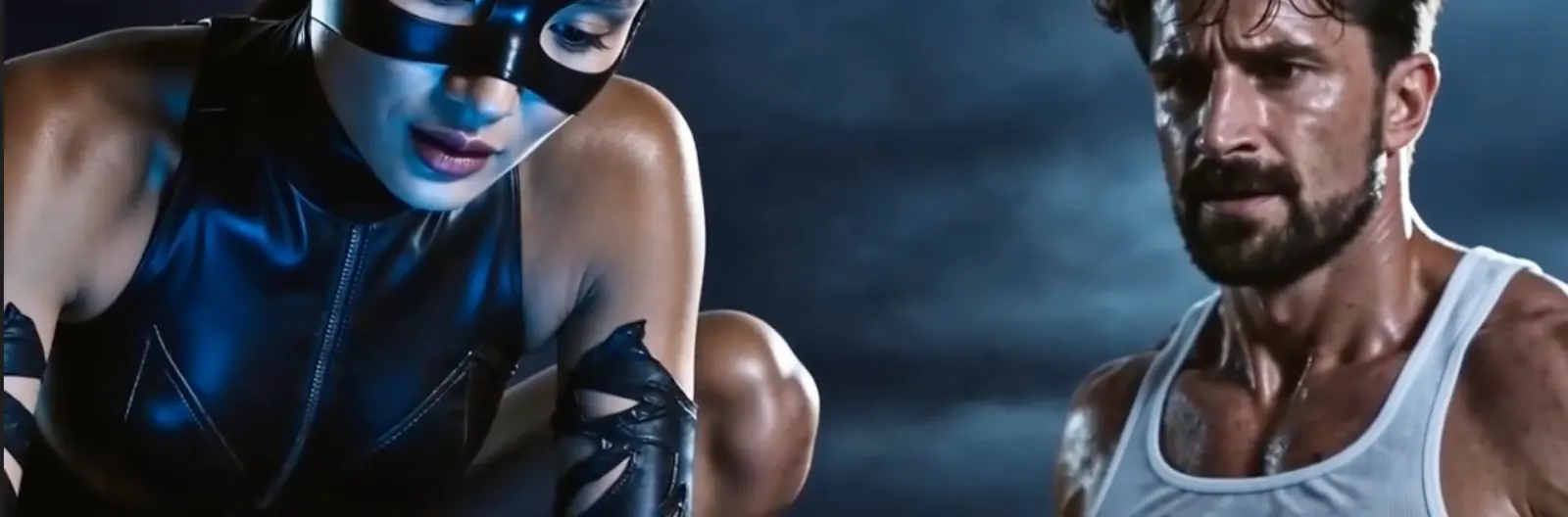
My partner saw the experiments, and naturally wanted to become a superhero. These are a few clips we made together:
How I Show The Videos On This Site
- Keep X and LinkedIn posts as external links for discovery (only the AI twin arc).
- Export compressed web versions of the videos.
- Host those files directly on this site (could have used a proper video host/CDN if files were larger).
- Embed with the native HTML
<video>element.
For a static Jekyll site, the clean version is something like:
<figure class="video-embed">
  <video
    controls
    preload="metadata"
    playsinline
    poster="/assets/post-media/ai-generated-video-workflow/ai-viktor-poster.webp"
  >
    <source
      src="/assets/post-media/ai-generated-video-workflow/ai-viktor.mp4"
      type="video/mp4"
    />
  </video>
  <figcaption>AI Viktor explaining that real Viktor has outsourced himself badly.</figcaption>
</figure>
That gives you:
- reliable playback
- normal browser controls
- no social-platform JavaScript
- no mystery iframe layout
- control over posters, captions, and page performance
The trade-off is bandwidth. If the videos are large, self-hosting several of them can get heavy fast. In that case I would either use a proper video service or keep the embedded videos short and link out to the full versions.
1. Start With The Script
I started by working out the script in an AI chat. In my case, a lot of it happened in Gemini.
The important part was not just “write me a funny AI video”. The better approach was to work through:
- the premise
- the character conflict
- the tone of each scene
- what each clip needs to show visually
- what the spoken line should be
- what can realistically fit in a few seconds
Obviously you can get AI to help out with most of the above as well.
One of my early mistakes was asking for scenes that were too long. Long AI video generations are expensive, harder to control, and annoying to fix. If one detail is wrong, you often need to regenerate the whole thing. Tedious, and expensive. With current credit cost, I was paying roughly 7.10 USD for ONE generation of a 15s clip! More on costs towards the bottom of this article.
It’s better to ask the AI to split the script into roughly five-second batches.
In the beginning I prompted Seedance with something like:
A single, locked-off master shot of the high-end minimalist office from
[OFFICE_REFERENCE_IMAGE] in a Netflix documentary close-up style.

The video begins with Alert Viktor [ALERT_VIKTOR_CHARACTER_REFERENCE] sitting
in the office chair, matching the reference image. Identical realism and
hairstyle to the provided character reference. Strictly no cartoon styles. No
slicked-back hair.

He looks directly at the lens. To show he is an AI, he appears perfectly human
and realistic, except for an almost imperceptible detail in his eyes: his pupils
do not dilate or constrict, and they maintain a tiny, static digital
aperture-like pattern. Subtle, dark, no glow. This gives him a slightly inhuman
fixed gaze. Except for that, he looks identical to the reference.

Suddenly, Tired Viktor [TIRED_VIKTOR_CHARACTER_REFERENCE], messy hair and tired
face, enters from the left and puts a hand on Alert Viktor's shoulder.

Tired Viktor's anatomy must be precise: his right hand is steadily holding a
ceramic coffee mug with rising steam, and it stays in that hand throughout the
entire video. His left hand is used once to tap Alert Viktor on the shoulder.
Tired Viktor's mouth moves as he speaks his opening line calmly, perfectly
lip-synced.

Alert Viktor briefly glitches and dissolves into abstract computational digital
noise and data streams before vanishing from the chair. Tired Viktor sits down,
fills the space, maintains his messy morning look, and keeps holding the steaming
coffee mug throughout the entire scene.

He rubs his eyes wearily and then looks directly into the lens to deliver his
lines. His mouth sync must be perfectly accurate to the dialogue. Crucially,
Tired Viktor must continue speaking and maintaining active lip-sync until the
very last word of the script is uttered. The lip-sync must remain high-priority
for the full 15 seconds. He does not sip the coffee at all.

High-resolution, 4k, hyper-realistic, strictly no cartoon styles.

Integrated Script / Audio:
Sound of Tired Viktor entering. He says: "Get out", followed by a sudden, clean
computational data-burst sound from Alert Viktor as Alert Viktor disappears in
the glitch.

Tired Viktor, now sitting in the chair:
"Alright, I'm awake. Ugh. Okay, I clearly needed that extra hour. He's got the
infinite energy, but I've got actual years of industry experience... and this
coffee. So, if you want a demo with the guy who actually writes the code and
occasionally needs a nap, I'm your man. Let's get to work."

Strictly no extra or phantom limbs. Make sure Tired Viktor's hair stays
consistently messy through the whole video.
It can work, but if one tiny thing fails, the whole clip is compromised. Maybe the coffee mug disappears. Maybe the wrong Viktor sits down. Maybe the glitch is perfect but the face is not.
Also notice the added negative prompts for phantom limbs, as I had some issues witht the hand on shoulder being a third hand… You will see issues like this, and will have to build out the prompt as you go.
The better version is much shorter. For wide cinematic shots, I also learned to separate the visual idea from the entire story. A later prompt might look more like this:
Extreme wide shot, low angle.
A vast dark blue night sky with heavy cloud formations fills the frame.
Massive black silhouettes of monolithic high-rise buildings tower against a
blurred metropolitan skyline with small lights below.

Action:
Two small silhouettes, one lithe and athletic and one broad and powerful, sprint
across the edge of the tallest building. A huge orange-yellow blast blooms behind
them, throwing their black outlines into sharp relief. They leap from the roof
toward a slightly lower adjacent rooftop.

Style:
High-contrast noir, epic scale, heavy atmospheric haze, motion blur on the blast,
minimal character detail, cinematic.

Duration:
5 seconds.
2. Create Reference Images First
Before generating video, I created atmospheric still images.
These are not used directly in the final video, but they help define what we’re going for, and can be used as elements in Seedance for:
- environment
- lighting
- mood
- framing
- outfit
- character position
- camera style
I used Nano Banana for these images, but you can use any tool. GPT Images 2.0 gives very good results as well. The point is to have visual anchors before spending video credits.
For the AI Viktor series, I wanted that slightly serious documentary look with interview framing, so I started by generating an image capturing that.
3. Create The Characters
For the character cloning, I used Higgsfield.ai’s character feature.
The process is to upload around 30 to 40 images per person you want to recreate. Different angles, lighting, expressions. Ideally lots of variety.
4. Generate Short Scenes In Seedance 2.0
Once the script chunks and reference images were ready, I used the characters as elements in the Seedance 2.0 model (which is available inside Higgsfield.ai).
The prompt for each scene came from the script work in Gemini, then I adjusted it for the video tool.
I have tried a few models, and right now Seedance 2.0 gives me much better results than Kling for this kind of work. It’s also much more expensive, though.
The difference is especially noticeable in:
- lighting
- likeness to the character references
- keeping character consistency
- cinematic movement
Most useful lesson: keep scenes short. Four to six seconds seems to be the sweet spot right now.
5. Edit Everything Together In CapCut
After generating the clips, I pulled everything into CapCut.
CapCut is good enough for:
- trimming clips
- arranging the sequence
- adding cuts
- adjusting pacing
- adding music or sound effects
- removing dead air
- making the whole thing feel intentional, even when several parts were absolutely not intentional
6. Add Sound Effects And Music
After the edit started to work visually, I added sound effects and music.
For that, I used Freesound to download relevant bits and add into CapCut.
7. Add Subtitles In Veed
Finally, I used Veed.io to add subtitles automatically.
Takeaways So Far
Use short scenes.
Create reference images before generating video.
Expect to regenerate. Lots.
Expect to pay more than you planned. Lots more.
And maybe do more voice testing than I have done so far. Voice is still tricky. I should probably spend more time with ElevenLabs and see if that gives better control.
Costs And The Annoying Economics Of Experimenting
This gets expensive quickly. At the moment, I pay for the Ultra plan on Higgsfield.ai. That is 129 USD per month and includes 3000 credits.
That sounds like a lot of credits until you start using them. With Seedance 2.0, the rough cost is:
5sclip:55credits10sclip:110credits15sclip:165credits
Using the monthly plan price, 3000 credits for 129 USD works out to about 0.043 USD per credit. So a 15s Seedance 2.0 generation at 165 credits costs roughly 7.10 USD.
If you are using top-up credits, 2000 credits for 95 USD is about 0.0475 USD per credit, so the same 15s generation is closer to 7.85 USD.
A single 15-second generation costs roughly 7 to 8 USD.
In the beginning, I generated 15s clips each run because I was lazy and thought it’d be faster. It’s not.
If you need to fix the smallest thing, you usually have to reprompt and rerun. Six failed 15s attempts and you have burned almost 1000 credits. That is a very fast way to turn this curiosity into a very expensive hobby.
And then there are top-ups. 2000 credits at a time for 95 USD.
Final Thought
The weird thing about AI video is not that it replaces the whole process.
It does not.
You still need writing, direction, taste, timing, and editing skills, most of which I do not have. What I do have is enough patience to regenerate a scene until it behaves somewhat.
It is also a little scary to see how far this has come in just a few months. Personally, I hope it does not replace real filmmaking or acting. The better outcome is that it becomes another tool in the kit: something that helps crews test ideas faster, reduce costs, and make more ambitious work possible.